How to edit an existing Survey Code?
How to hop back into the survey builder, and when to redownload your Slide!
Hello everyone!
Today we’re going to talk about how to edit an existing survey code (its pretty straightforward). But I also want to answer a question I’ve gotten a lot!
When do you need to download a new Slide / QR Code?
So first off. You’ve already got a survey code ready to go, but you want to change a couple questions, or switch out the bonus? No problem at all! First, go to the ‘Get Feedback’ page, and click the three dots to the right of the survey code in question, then select ‘Edit Code’:
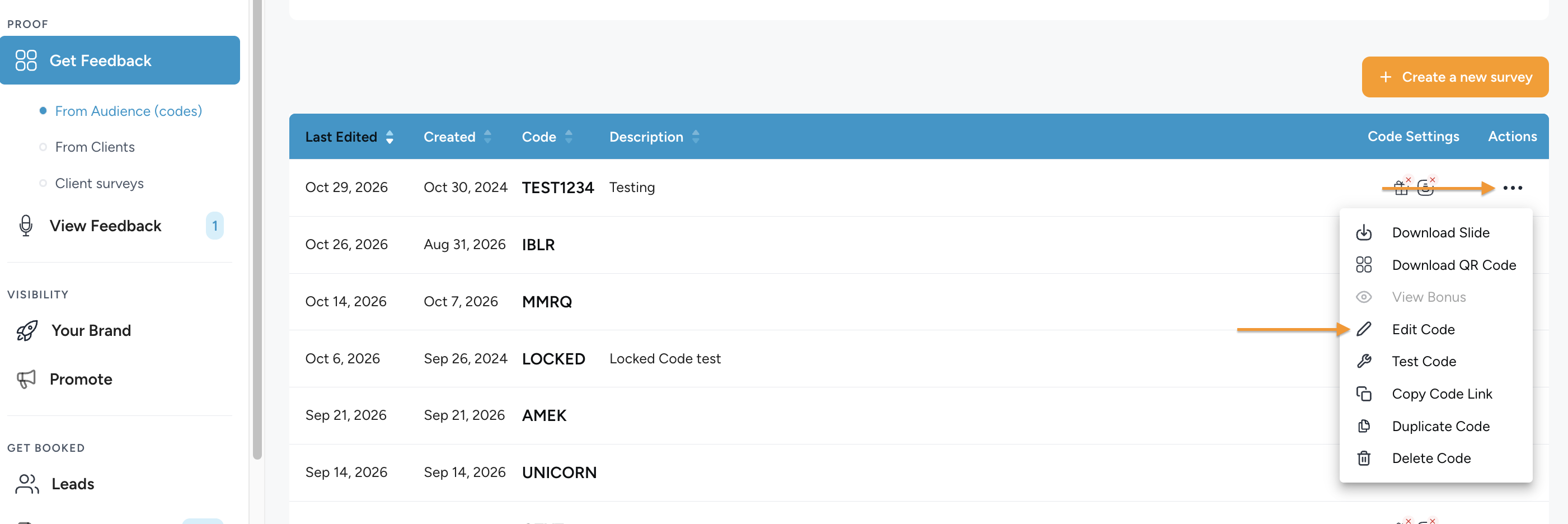
This will pop you over into the same code builder you used when creating the code, and bob’s your uncle.
Now, you’ve changed a bunch about your survey code, swapped out the bonus, changed the questions. Do you need to download the slide again?
That depends. Did you change the name of the Survey? As you can see at the top of the first page of the survey builder, we ask for a ‘name’ for the survey code:
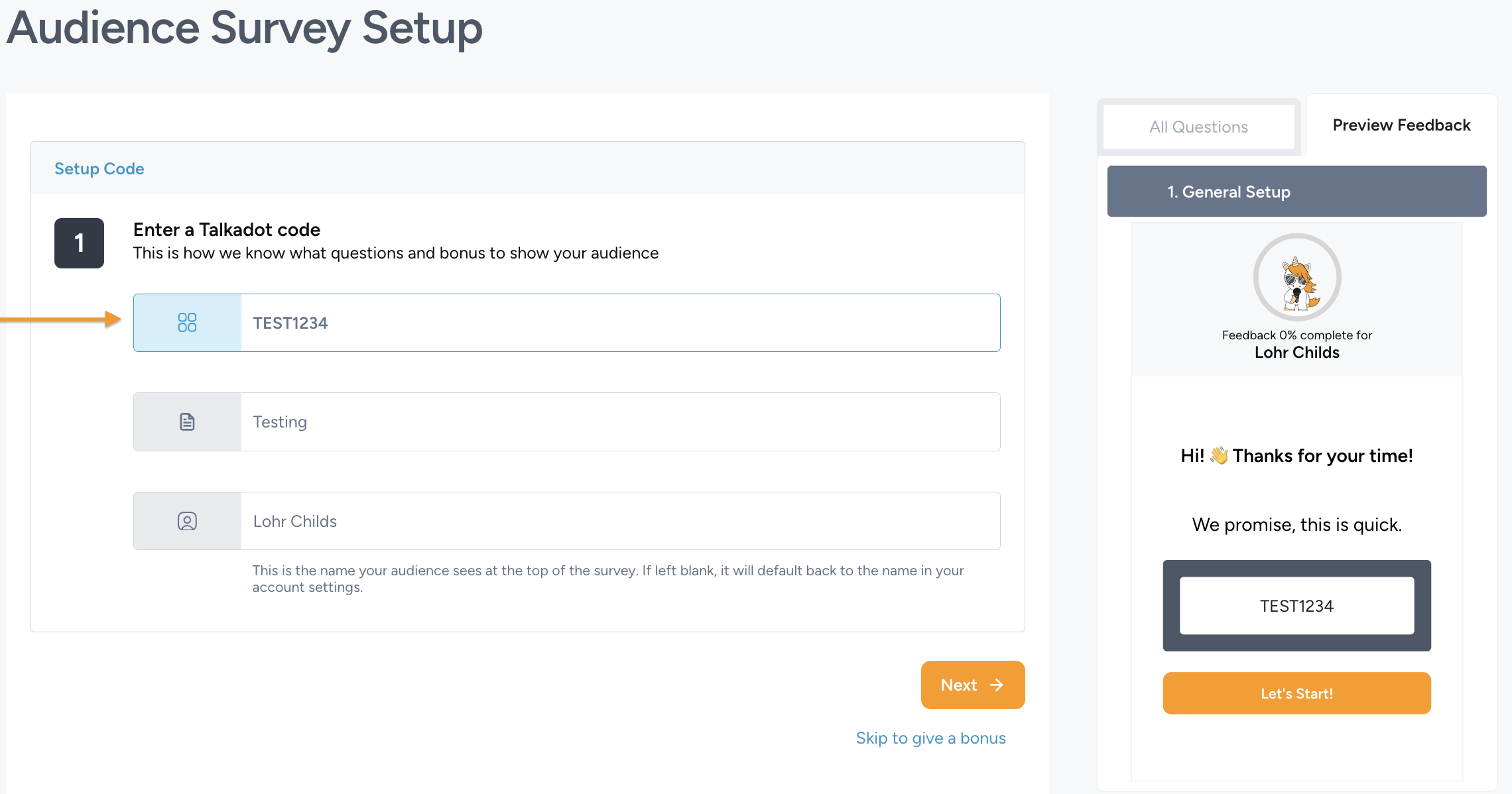
This name is part of the web address that brings you to to the survey, and is embedded in the QR code. If you changed this name, you’ll need a new slide / QR code. If you didn’t, you don’t!
One quick caveat to that though. If you decide at some point you want to change your ‘Talkadot Handle’ in your Account Settings, that is part of the short link for both your Profile and all of your survey codes:
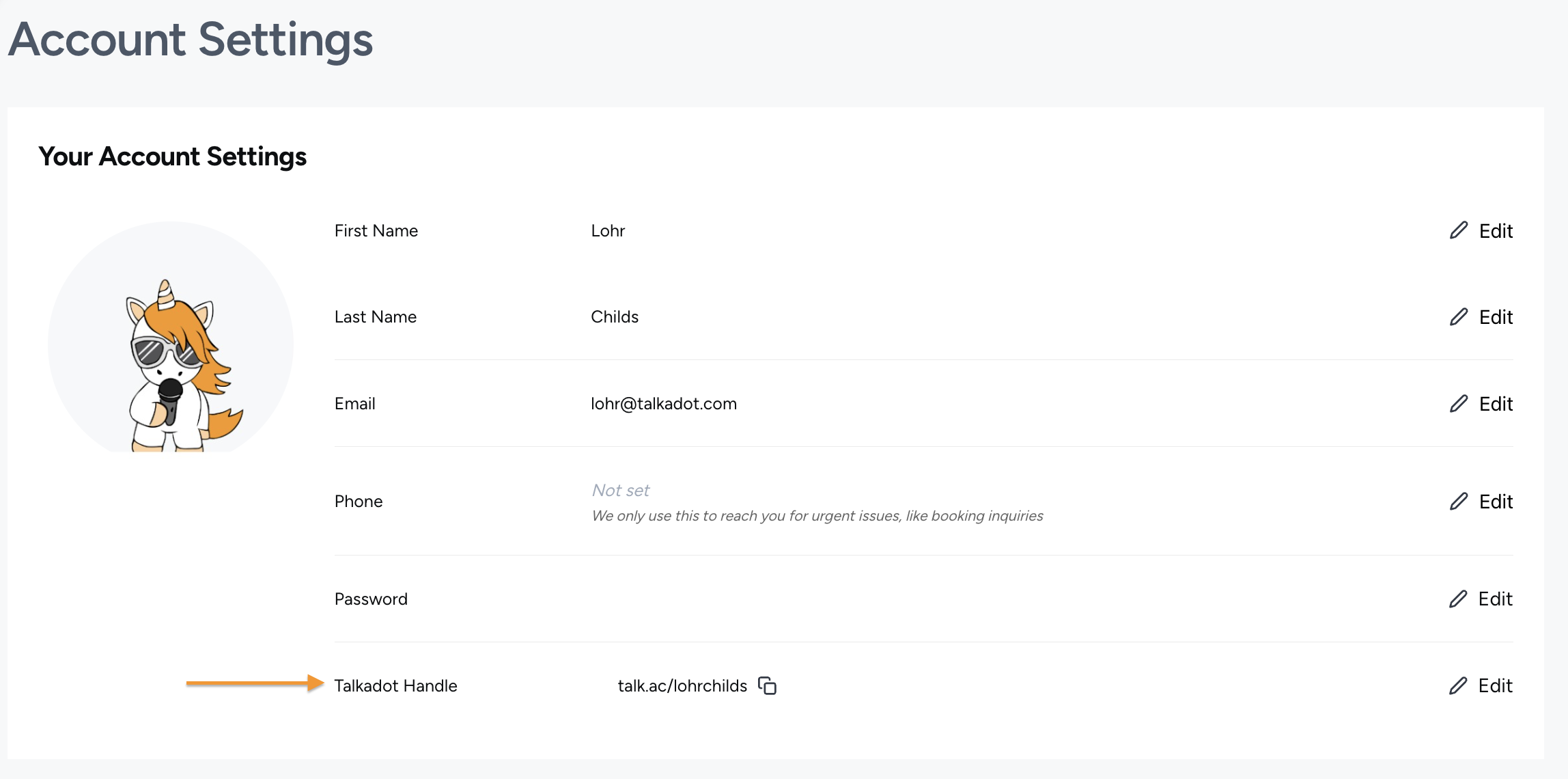
As such, if you do end up changing that, you will need a new version of every QR Code for your survey codes, as they will have all changed.